Stim Desktop
Stim Desktop is a macOS app for watching and steering the work Stim runs:
every workspace with its live simulators and emulators, builds, logs and the
agents driving them. It runs stim for you, so it needs the CLI from
Getting started.
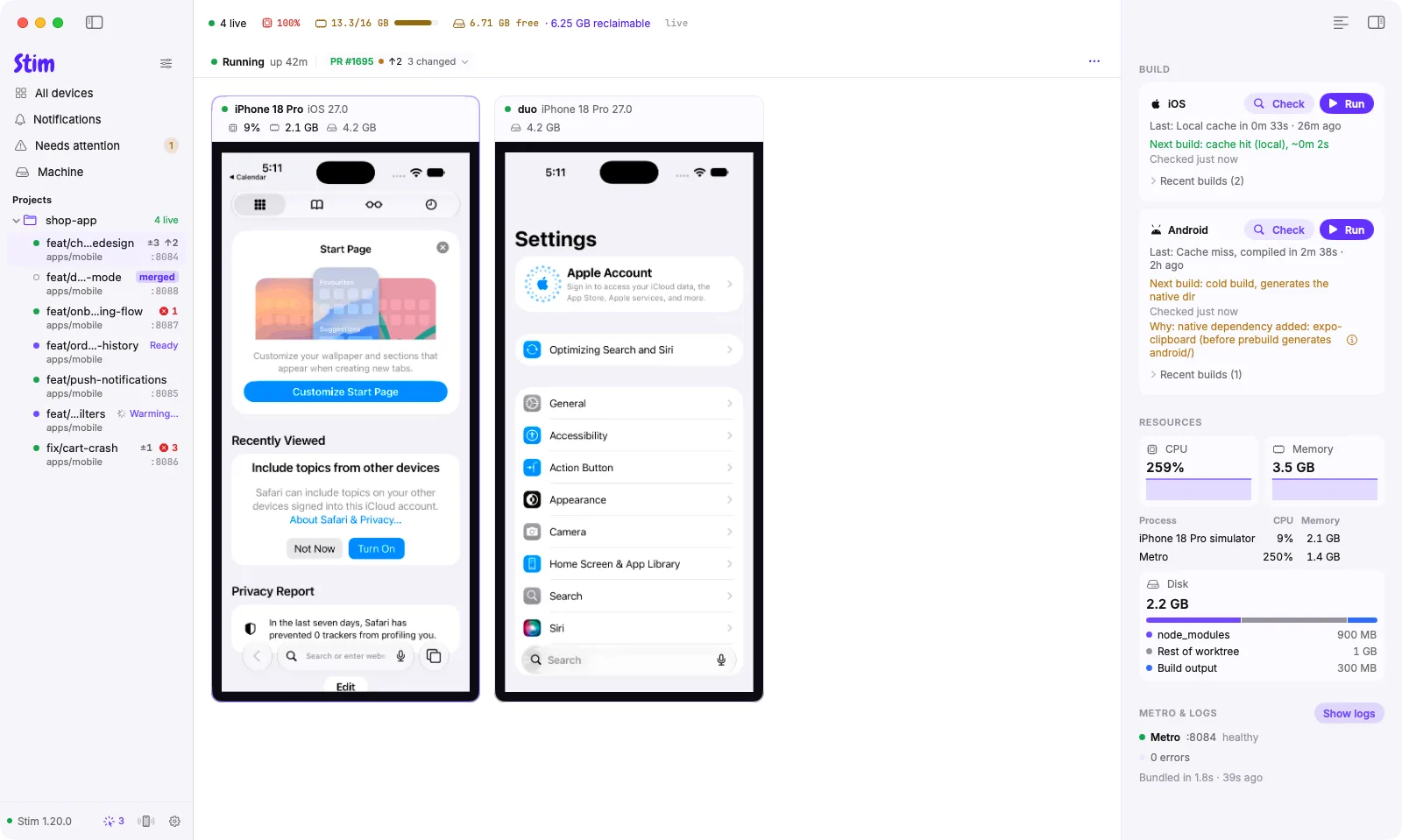
Apps in one linked worktree share a detail page and one sidebar row, with platform badges for each app. Selecting the row opens the page; a link or action for one app scrolls to that app. The row's context menu has per-app submenus, Stop all and Remove worktree. The canvas combines all devices, with one stage and git chip. Build cards keep platform titles, adding project subtitles only for repeated platforms. The inspector aggregates resources, labels each Metro and deduplicates agents. The logs drawer follows app selection and has an App picker. The actions menu keeps each app's commands plus Stop all and one Remove worktree action.
Download
Download Stim.dmgOpen the disk image and drag Stim to Applications. Or use Homebrew:
brew install --cask appandflow/tap/stim
- macOS 14 or later, on Apple silicon or Intel.
- The
stimCLI, on your login shell'sPATHor set in Stim > Settings > App. See Install Stim. - Xcode 27 for live simulator screens.
Hosted iOS simulators started with stim ios --remote <machine> appear as device
tiles with an on <machine> label. Turn on Serve to phones to view and
control them through this Mac's stim-server relay. Touch and text reach the
hosting Mac; controls that need a local simulator, and replay, are hidden.
The tile reports connecting, unavailable or stopped sessions. Android hosting
and automatic placement are not available yet. See iOS on an approved Mac.
Desktop uses the non-empty launch STIM_HOME, then the login shell's value, then
~/.stim; Settings > App > Stim CLI shows the home, and private-home copies
refuse servers for another home.
The app updates itself. Release builds report crashes to Sentry with file paths, host names, addresses and credentials removed, and send no screenshots or performance traces. Every release is listed under desktop-v releases.
What it does
- Every workspace at a glance. Each workspace shows its stage (warming, building, running, failed), its devices side by side, and its branch and pull request status.
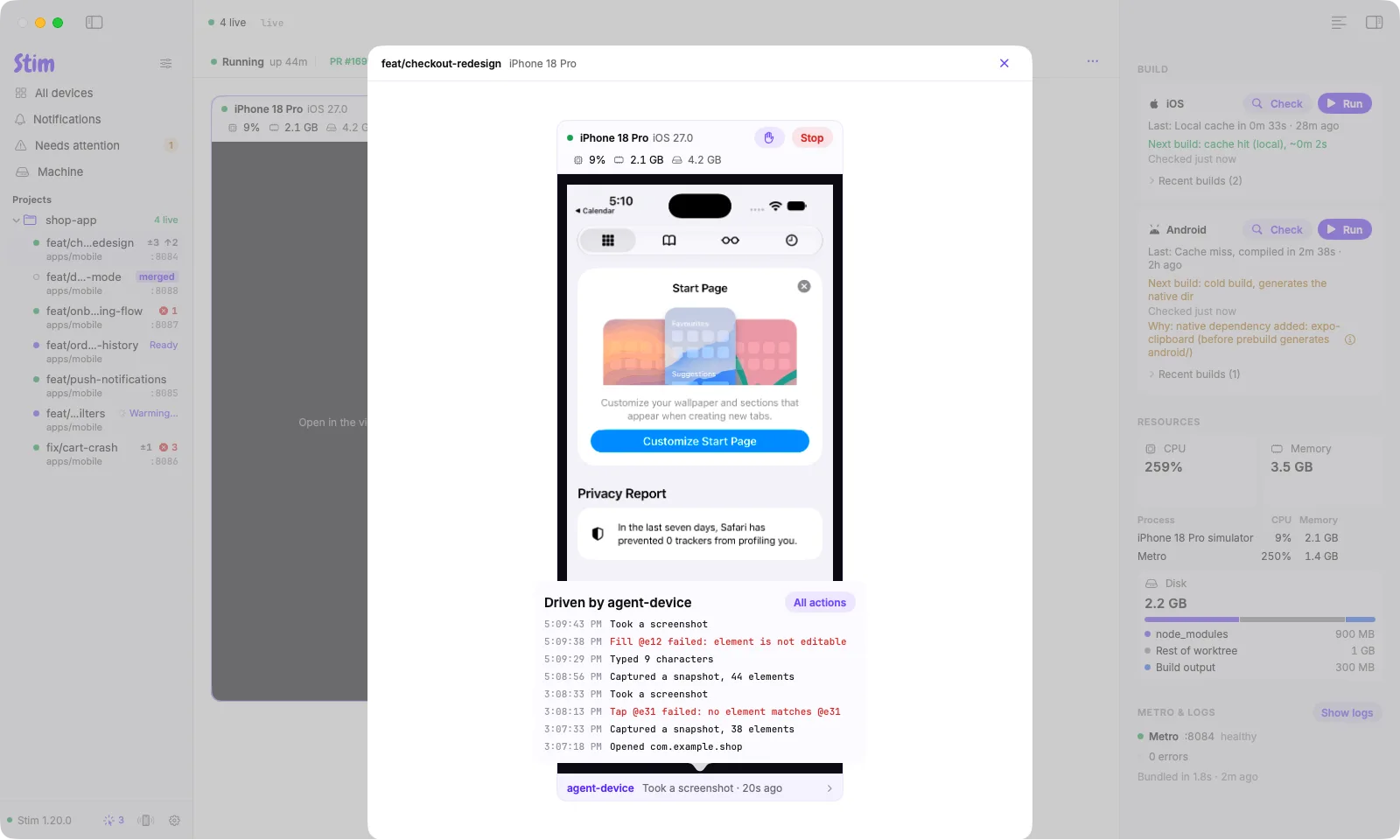
- Watch and take over a device. Open a device to see its screen large, take it over with your mouse and keyboard, and read what the agent did and when. Hardware, rotation and posture controls sit in groups below the screen, wrapping when space is tight. Local iOS input connects in the background and drops clicks and keys while the screen shows Connecting input or Input unavailable. Lookups time out after 10 seconds; Desktop stays responsive and waits for CoreSimulator's blocked call to return before trying again. Rotation, hinge input and development controls share that per-device guard. Legacy input stays usable during background retries. Cancelling a development request stops waiting while its lookup guard remains held until CoreSimulator returns.
- Replay. Scrub back through a device's recent screen, with agent actions and errors marked on the timeline. Needs Serve to phones in Stim > Settings > Phones.
- Simulator options. While Control is on for a running local iOS simulator, change appearance, text size, contrast, motion, transparency and button borders in its options popover. Values come from the selected device; Refresh reads changes made elsewhere. Unsupported options say Unavailable. Requires Xcode's simulator appearance API; audio, location, VoiceOver, color filters and Liquid Glass options are not included. Its Development section also offers Slow animations and Shake where CoreSimulator supports them. Slow animations changes guest UIKit animation speed and reads the setting back; Shake sends a shake event to the foreground app. Android animation settings are unchanged.
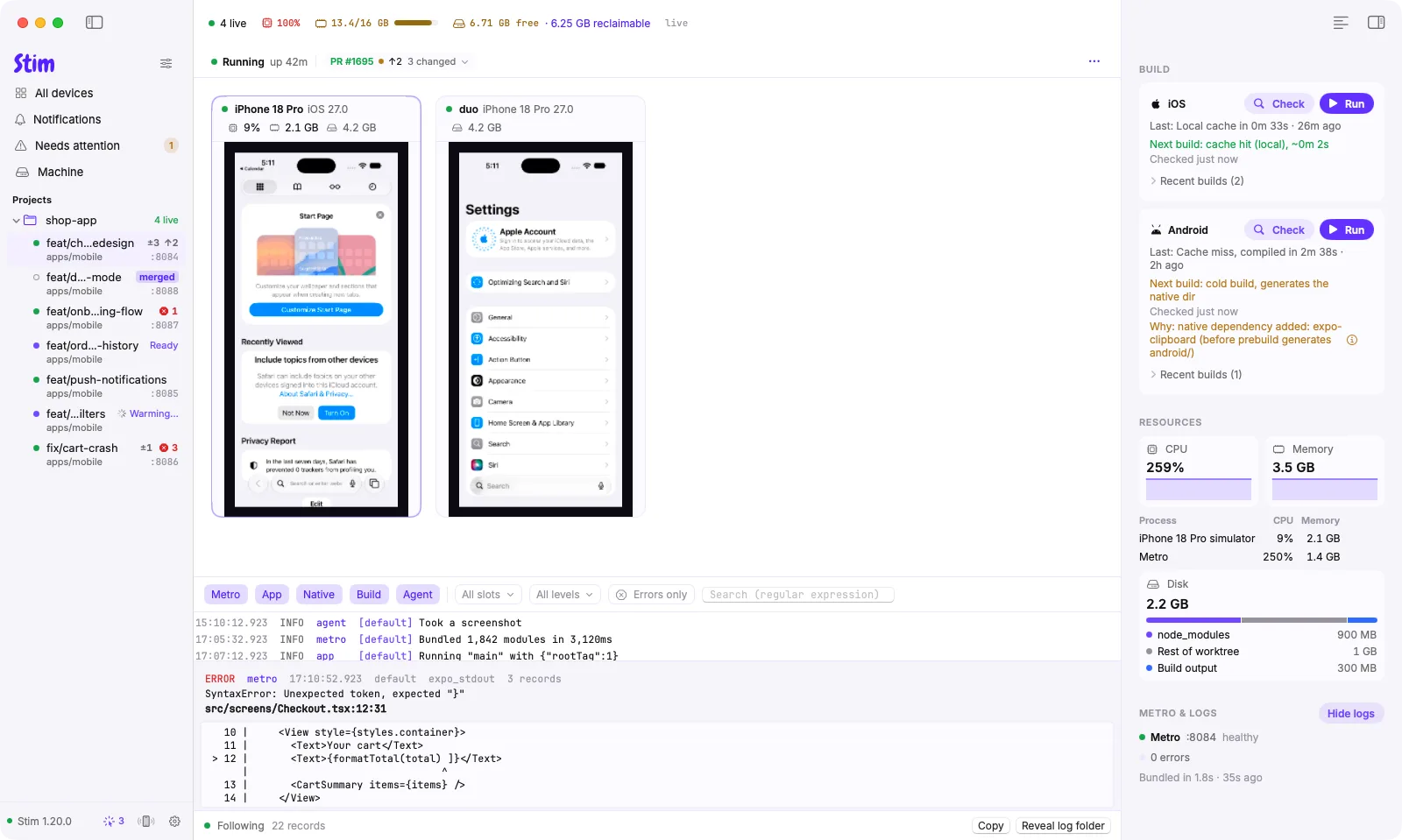
- Logs. Separate Metro and App / native inspector sections open the same viewer with their source filters selected. Filters remain editable; repeated errors are grouped. Build output > Readable simplifies Xcode output; Raw restores every line. Copying and record details retain the original output.
- Builds. The inspector card keeps progress and the last and next build summaries. Details opens a sheet with a platform switch, recent runs, elapsed time and estimate, phase timings, the wait holder, cache lookup and full miss reason with changed sources and baseline, build machine and offload fallback reason, compiler diagnostics, retained output, and the next-build plan with Check. The header's running-build progress opens the current run in the same sheet. Open in logs panel opens the selected run in the logs drawer, filtered by platform, slot and timestamps. Clear the Build run chip to return to generic logs. Run starts iOS or Android; a failed last build offers Rebuild. For multi-app worktrees, the sheet switches among all apps' iOS, Android and macOS entries, adding project names only for repeated platforms; checks, runs, history and logs use the selected app. The macOS panel shows the product, build state, duration, error and build logs.
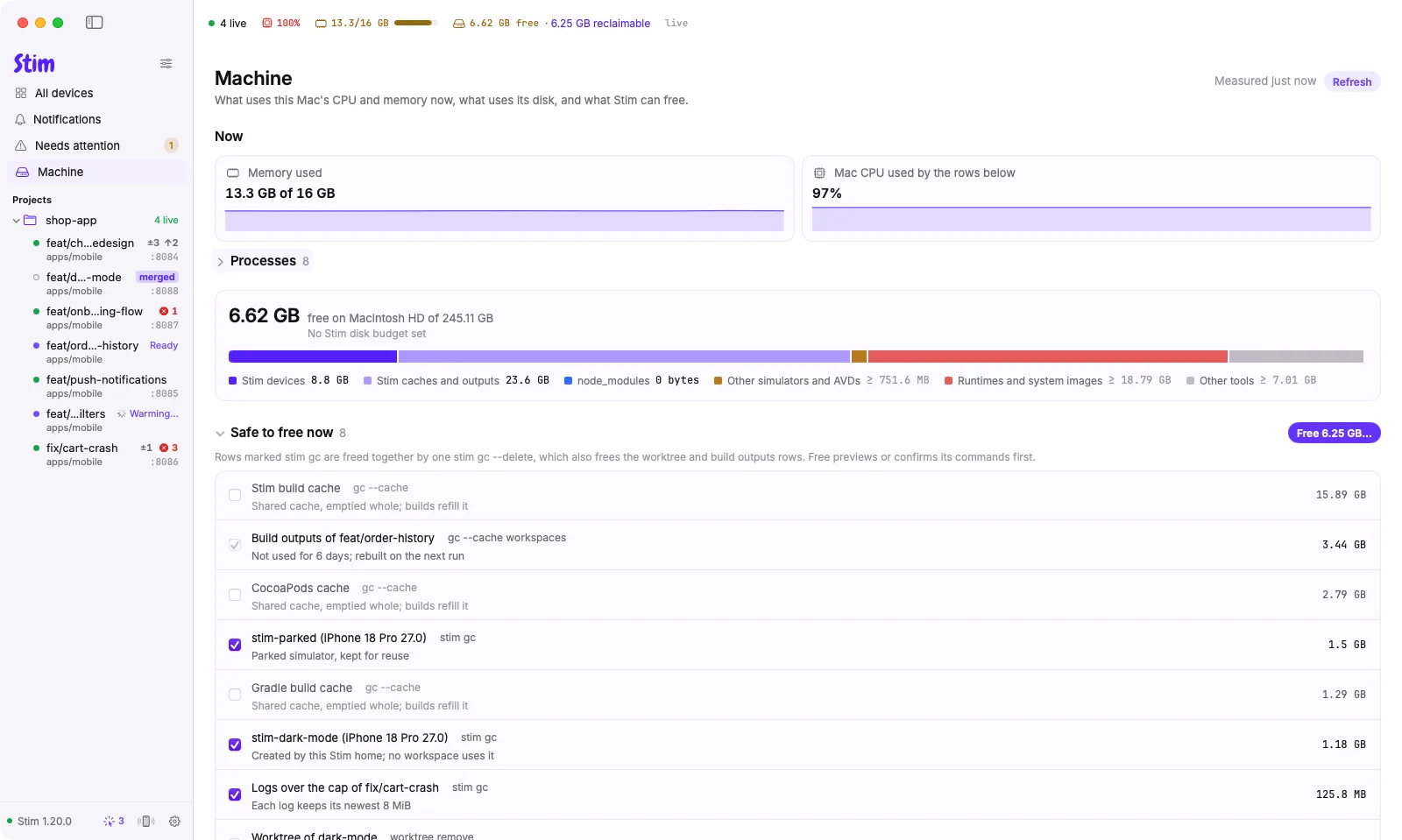
- Other tools storage. The Storage page reports agent-device runner builds,
sessions and logs under Other tools, with Reveal opening its state
directory. It also reports the user-level SwiftPM cache, shared by every
SwiftPM build on this machine, with Reveal opening its cache directory.
The
~/Library/Cachesrow excludes SwiftPM bytes counted in that separate row, as it excludes Stim caches, so Other tools counts them once. Stim never offers a cleanup action for either report-only location. Stim never trims or deletes the shared runner builds, sessions, logs and other state or the hosted driver dir; a workspace's own agent-device dir goes only with its workspace. Stim never deletes the SwiftPM cache. - Machines. Select This Mac for local disk, memory and cleanup, or a
configured build machine for its readiness, capacity and build history.
Click the toolbar's CPU, memory or disk figure for details; Open Machines
in each popover opens the Machines page. CPU covers live workspace processes,
while memory covers the whole Mac.
Link machine opens the existing Build Machines settings flow.
A build machine on another Stim build offers Install This Mac's Build. It
installs this Mac's npm release there, or this checkout's own build when the
machine allows it with
server.acceptClientBuilds. The update goes over the tailnet, with no ssh, and the old server comes back if the new one does not start. Settings > Build Machines can update them automatically. A removed selection returns to This Mac; remote selections have no local cleanup actions. Select checklist items to enable Free space; cleanup previews or confirms the selection before deleting anything. Build-cache stats and placement totals use the existing local server connection when it allows reads for the same Stim home; otherwise they use the CLI. This does not turn on Serve to phones. A cancelled stats refresh stops waiting without disconnecting device viewing; its server read may continue until it finishes or reaches its existing limit (normally 60 seconds). The shared connection limits each complete response to 16 MiB, including its JSON envelope; an oversized response shows a read error without retrying through the CLI. - Workspace changes. Click the workspace header's Git chip, then Review changes, to browse staged, unstaged and new files. The built-in viewer loads each patch when you select its file, with a 200-file list and 256 KiB preview limit. It labels binary, oversized and unavailable previews, and needs the local server (Serve to phones on) to be read-capable with workspace diff support, for the same Stim home. In Settings > Integrations > Review changes in, choose Built-in or Visual Studio Code. VS Code opens the local repository for review in Source Control, rather than exporting a selected comparison. A missing app or failed launch reports an error.
- Phones. Pair the Stim phone app, and watch a leased phone from the desktop: Android can be controlled, an iPhone over USB is view only. Needs Serve to phones. The phone's workspace list groups app projects from one linked Git checkout under one branch heading. The heading and each app child open one screen for the whole checkout, with every app's devices, builds, logs and commands; a child scrolls to its app's devices. In the phone's Work sheet, Changed and Untracked open a file list; choosing a file shows staged/unstaged patches or new text. Diffs load only on demand, with virtualized lists, up to 200 files and a 256 KiB preview limit. Binary files and unsupported previews are labeled. Changed lists include submodules only when their recorded commit differs; uncommitted edits inside submodules are not listed. Active Git clean/process filters, including Git LFS, refuse without running them. Viewing needs a Mac server with workspace diff support; edits and staging stay on the Mac. Different machines and checkouts remain separate. Primary checkouts and older servers lacking checkout identity still show separate app rows; #2418 tracks that addition. The phone's Logs screen starts with 200 recent records. Load older logs expands that recent window by 200 up to 5,000; each request repeats the recent window. Opening a specific agent action retains the larger window. Log followers pause while their route is covered or the phone app is in the background and refresh the retained window when visible again. This reduces initial phone transfer; the server still reads its captured log timeline. Desktop's sidebar shows one row per multi-app worktree, with platform badges for each app. On wide iPad and Duo windows, the app keeps its navigation beside the main screen; details use the full window. A book fold aligns the panes with the display division; a narrow cover screen uses the menu drawer. Duo fold detection needs an app built with the iOS 27.1 SDK and an iOS 27.1 runtime. On supported phones, light haptics mark menu opening, section and custom-filter changes, and successful diagnostic or log copies; scrolling and live updates stay silent.
- Tablet phone-app layout. Workspace summary cards use one row when the content pane has room for all four, and wrap on smaller panes. Device cards stay centered, fill available width up to 640 points, and form extra columns only when full-width cards fit.
- Notifications and cleanup. Alerts for stuck agents and builds that keep failing, and automatic removal of worktrees after their pull request merges. The Needs you category lists only what agents cannot handle, such as a doctor finding, a signing failure or an expired device lease, with Run, Copy command, Fix, Open logs or Show in Finder on its row in Notifications. It is Silent by default. The inbox starts with 50 matching notifications; Show older notifications loads another 50. Changing a filter returns to the first batch. Mark all read and Clear apply to all matching notifications, including rows that have not been loaded.
Workspace device cards fill the available width up to 640 points and wrap into centered rows. Each complete card, including its header, fits the canvas height; additional rows scroll vertically. Screens keep their aspect ratio and a 900-point height cap. Small previews use a 6-point inner inset, while the canvas keeps 20 points of outer padding. Stopped devices use compact, consistently sized cards up to 420 points wide. Boot runs the device's platform and slot through Stim, building and launching when needed; the button is disabled while the workspace has an action running. Unowned and physical devices have no Boot button. Closed web cards offer Open instead. Workspace cards show Control for a running controllable device, or View otherwise. Clicking the rest of the card opens the viewer, with Control already on when the device allows it. Physical iOS devices and remote previews stay view-only; Android phones require a valid lease and a control-capable pairing. Release control or Escape returns to viewing.
In a live local simulator or emulator viewer, Show device frame adds matching
installed hardware artwork. Hide device frame returns to the default frameless
view. Frames rotate with the display, preserve its aspect ratio and input
coordinates, and do not require Control. Apple frames use installed DeviceKit
chrome. Android frames use the AVD's configured skin or matching hardware profile
artwork in /Applications/Android Studio.app, with matching screen dimensions.
Missing artwork and unsupported skin layouts stay frameless; Android foldables,
physical and remote devices, web pages and replay do too. For a local iPhone Duo,
an installed Xcode with DeviceKit's V68 model and a valid observed hinge angle
enables genuine hardware that follows the hinge and rotation, with input mapped
to the posed active screen. Without that model, the viewer stays frameless.
Desktop snapshots the departing panel before its own posture controls change the
hinge; external handoffs can leave that panel blank or retain an older snapshot.
Stim does not bundle the artwork.
The phone app's bottom toolbar offers Device frame for ordinary live iOS simulators and Android emulators when the paired server supports it. Frames start off. The Mac sends installed housing pixels to the authenticated read subscriber; the app keeps its existing guest screen inside the housing's aperture, so bezel taps send no input. Missing artwork or mismatched rotation keeps the screen frameless. Phone replay, physical devices, web pages and Android foldable/circular devices do not use this mobile frame path.
Framed H.264 requires a current Stim phone build with native orientation-clear support; older phone builds keep the video frameless.
For a live iPhone Duo, Device frame uses the paired Mac's installed V68 model
when the server advertises duo-frames. The Mac composes the hardware and screen
pixels into JPEG images with the observed hinge angle and rotation. A missing
model or angle reading keeps the raw screen visible. Input is enabled only after
the image is displayed, and a drag stays bound to that image's pose. Bezel and
hinge taps send no input. Raw subscribers and recordings are unchanged; turn the
frame off to replay them.
The live local viewer's scale menu defaults to Fit. Point Accurate maps iOS points or Android profile dp to Mac points; Pixel Accurate maps guest pixels to display backing pixels. Physical Size uses installed iOS device DPI and the current monitor's reported dimensions, which can be approximate. It is unavailable without those measurements and on Android; Android dp density does not describe physical size. Moving between monitors updates the scale. Accurate modes keep their size when the viewer is small. Scroll outside the device screen, or release Control to scroll over it; Fit always returns to the full device view. Hardware frames retain the screen scale through rotation. Android accurate modes use native-resolution images; Fit and wall previews keep their 960-pixel limit. Duo's projected housing and folded screen, replay, physical devices, web and remote previews remain in Fit.
While controlling a local iOS simulator or Android emulator, hold Option and drag to pinch or rotate two fingers around their center. Hold Option-Shift to move both fingers together. Trackpad pinch also sends a two-finger pinch. Two markers show the contact positions, including on a framed or folded screen. Releasing Option, ending the gesture, changing orientation or releasing Control lifts both contacts. Option and the gesture's Shift modifier stay on the Mac. These gestures are not available for physical devices, remote previews or web pages.
With Control on an owned local simulator or emulator, Paste into device copies Mac clipboard text and pastes it into the focused guest field. An iOS simulator shows its own "Allow Paste" prompt for the text (seen on iOS 27.1, and again for each new text); click Allow Paste in the viewer to insert it. Owned local iOS simulators and Android emulators also offer Copy device clipboard, which copies guest text back to this Mac, including empty text. Unicode and line breaks are preserved. Transfers happen only when pressed; there is no automatic clipboard synchronization. An empty or non-text Mac clipboard leaves the guest unchanged. Disconnects and unavailable native clipboard APIs report a failure. Physical devices, remote sessions and replay do not offer clipboard actions.
The All devices and project wall creates rows and device tiles as you scroll. Offscreen previews pause and reconnect when you return to them.
On the All devices and project wall, active workspaces without running or building devices use compact cards labelled No running devices, with Metro status, warnings and error links. CPU and RAM stay on the workspace page.
Run, Reload app, Start dev server and Stop from the workspace or sidebar menus keep you on the workspace page, as do Stop or Shut down in the now band and Build and run and Stop on a macOS app card. Open Last output or Operations for command details, including failed runs. The device viewer's Run, Stop (including a remote session's), Reload web and Close web also run without opening a sheet. Progress and failures appear on a line under the viewer toolbar; Show output opens the failed run's output, and Dismiss hides that failure. Click the Recent builds label or chevron to expand the build history. Each row shows outcome, duration and age; click a row to open that run in the build details sheet. Disclosure content and chevrons animate unless Reduce Motion is enabled.
An empty workspace shows a purple device floating above a round plinth and a short launch hint. Reduce Motion stops the illustration's animation.
On a foldable held like a book, the phone app's device viewer places the screen and replay controls on the leading side of a vertical fold, with Control toolbars and agent actions on the other side. An iPhone Duo needs a build compiled with iOS SDK 27.1 or newer and an iOS 27.1 or newer runtime. Android needs WindowManager fold support. Builds using an older iOS SDK receive no fold divisions and keep the default viewer layout.
When the phone is partly folded like a laptop and reports a horizontal fold,
the viewer places its title and screen above the fold, with read-only messaging,
Control toolbars, replay controls and agent actions below it. This tabletop
layout uses react-native-hinges posture readings and the reserved fold geometry;
without both, the default layout remains. The same iOS SDK/runtime and Android
WindowManager requirements apply.
Actions open a sheet with progress and one completion or failure status. The sheet stays open until you close it. Expand Command output to see the command and raw output during or after a run; it is collapsed by default. Launch progress uses Launching app and Verifying launch labels.
Closing the window leaves Stim Desktop running, so notifications and the phone server keep working. Click the Dock icon to reopen the window, or press Command-Q to quit. Command-1, Command-2 and Command-3 open All devices, Notifications and Machine.
Stim Desktop checks the npm registry once a day for a newer stim. When the
stim it runs was installed by npm, pnpm or bun and is older, the sidebar
footer says so and Settings > App > Stim CLI has an Update button that
runs that package manager's update command. It never updates by itself, and it
never offers an update for a stim that no package manager installed, such as a
linked checkout.
First steps
Unless you are already set up, the first launch opens a setup guide that
installs the stim CLI with npm, pnpm or
bun, whichever of them you use, and the agent skill, asks for notification
permission, offers an optional step that turns on Serve to phones and pairs a phone, and checks Xcode, the Android SDK and a project with stim doctor.
Each step shows the command it runs and runs
it only when you press Run. The project check lists each stim doctor
finding with its fix, and offers Fix for the findings stim doctor --fix
repairs. Reopen the guide from Help > Setup Guide….
In a project, warm a worktree and run the app:
- Global
- npx
git worktree add -b my-feature ../my-app-feature
cd ../my-app-feature
stim worktree warm
stim start
stim ios
git worktree add -b my-feature ../my-app-feature
cd ../my-app-feature
npx stim worktree warm
npx stim start
npx stim ios
- The workspace appears in the sidebar as soon as it warms. Its simulator shows in the app instead of a separate Simulator window.
- Click a device to open its viewer. Take over lets you use it; Escape gives it back.
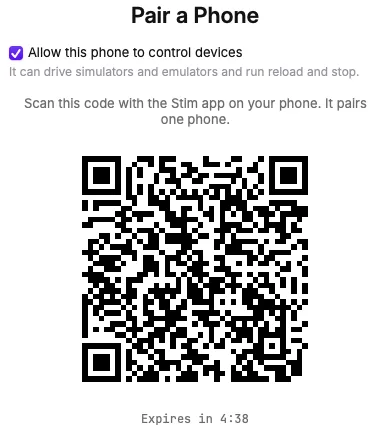
- To use the phone app, open Stim > Settings > Phones, turn on Serve to phones, choose Set up connection if needed, then Pair a Phone…. Setup keeps existing Tailscale routes and never enables Funnel. If Tailscale asks to enable HTTPS, approve its browser setup and retry. Pairing waits for a verified private route; a timeout changes nothing.
Revoking a paired phone closes its active connections on the next pairing check. The server checks pairings on changes and once a second. If QR pairing fails, the phone keeps the error visible until Retry or manual entry is chosen.
The phone validates server replies and live events before displaying them. Malformed known data triggers a reconnect with a connection error; message contents are not logged. Older compatible payloads and extra fields remain supported. Binary video uses its existing stream format.
Stim prints Open in Stim Desktop: stim-desktop://workspace?path=... when it
starts work, and coding agents share the same link, so you can jump straight to
a workspace. Settings and other details are in the
app's README.
SwiftUI playground for contributors
A DEBUG build provides Window > SwiftUI Playground with production notification filters, build cards and disclosures, simulator appearance controls, Settings scope tabs and design tokens. Named scenarios cover each view's applicable loading, empty, error, long-text and large-data states.
Run swift run StimDesktop --playground from apps/desktop to open only the playground, without
starting the normal app's CLI or server. Fixture interactions stay in memory. Compact/regular
viewports, light/dark, large text and increased contrast help inspect layout without
changing system preferences. Release builds exclude it. See the desktop development guide for adding a fixture.